Smart Keep
Smart Keep cards on graph paper
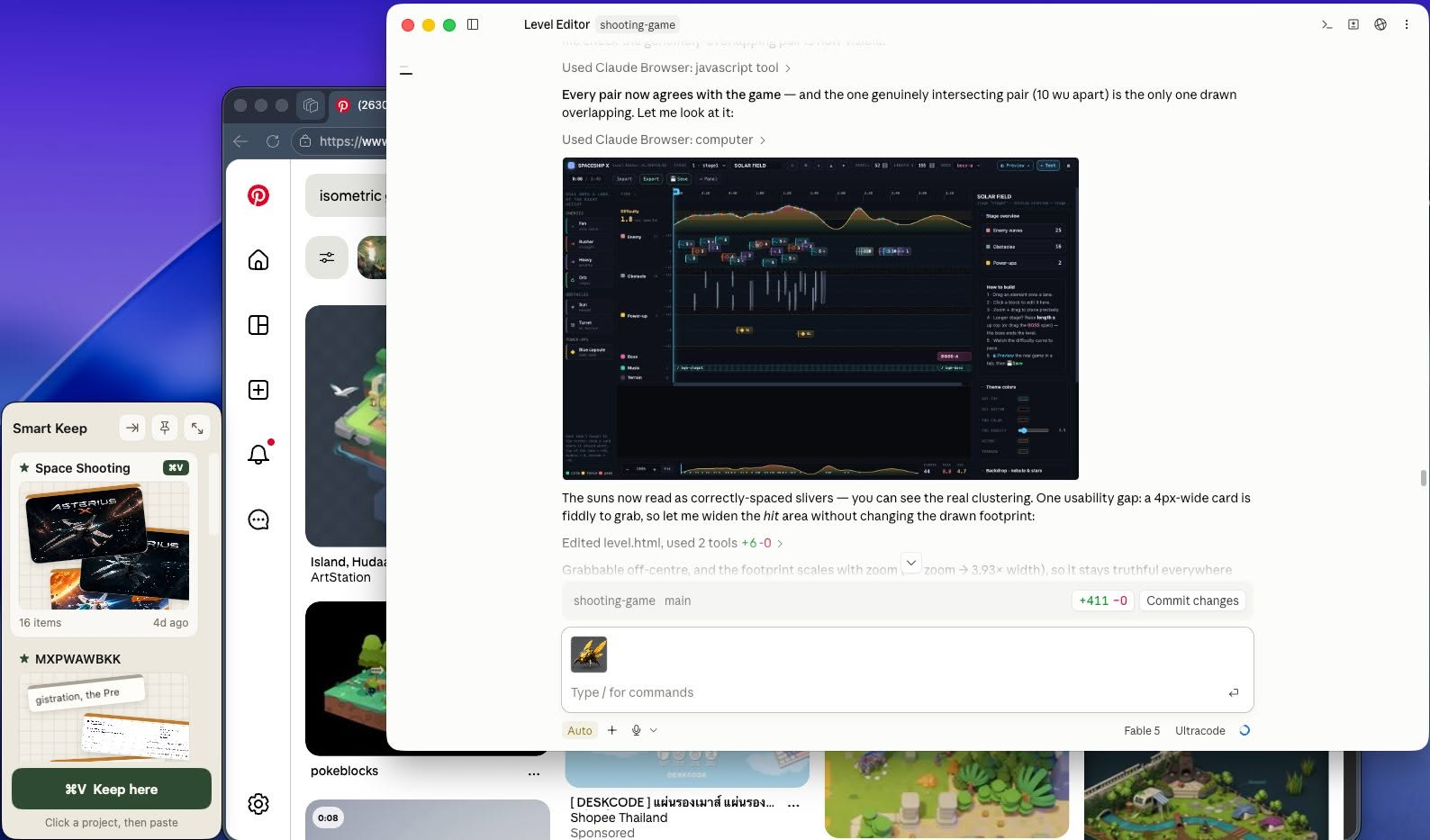
Smart Keep side dock
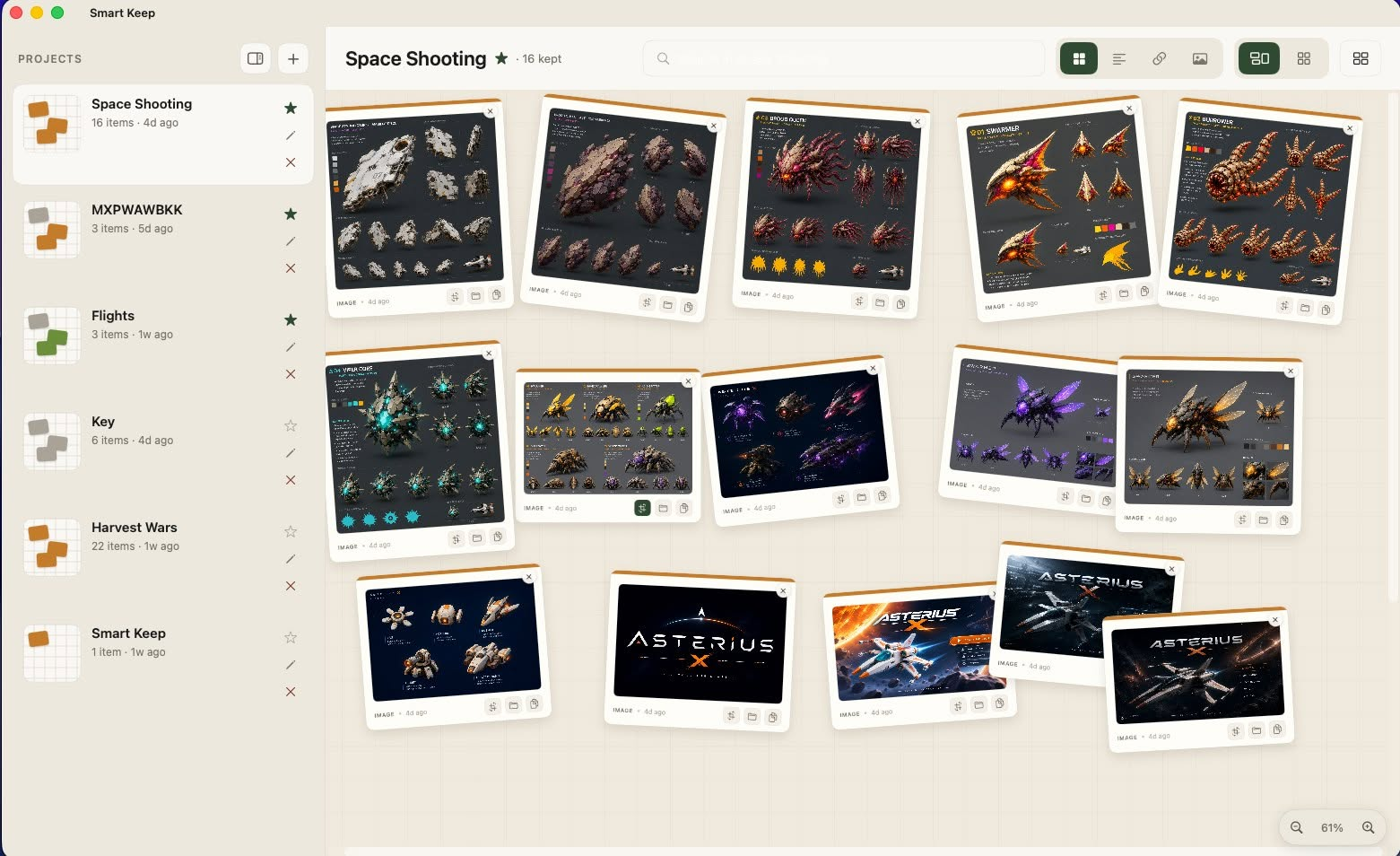
Smart Keep full board
Meeting notes
NOTE
Type scale guide
figma.com
LINK
Studio shot
IMAGE
Launch teaser
VIDEO
Checkout flow — round 2
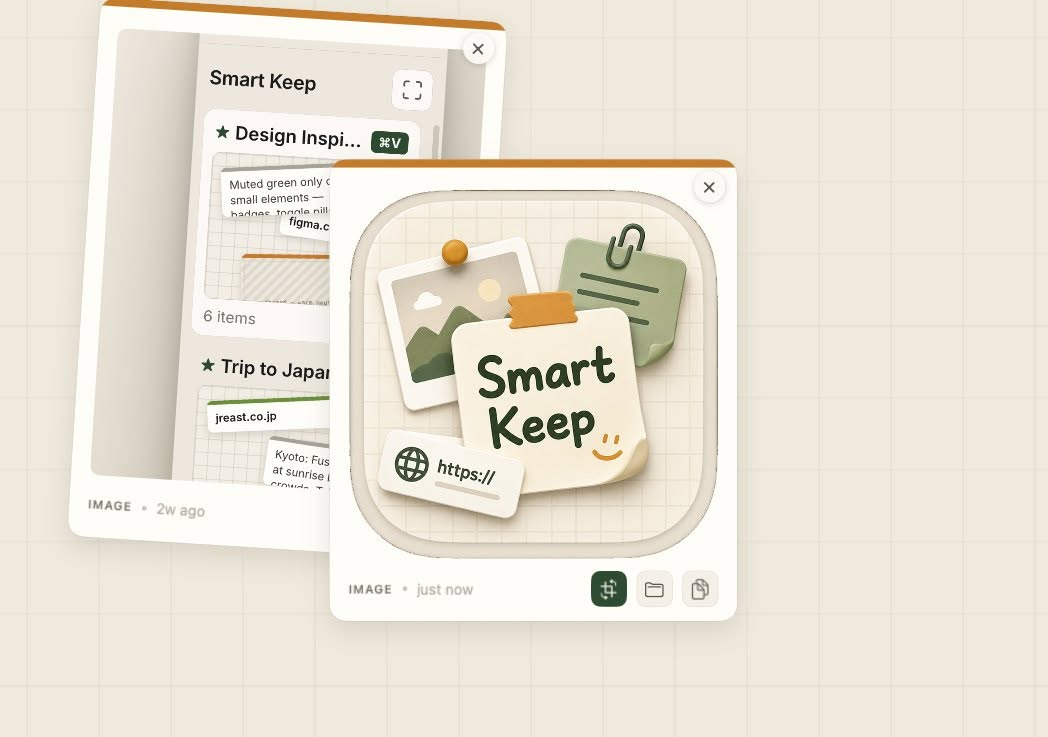
IMAGE · just now
Clipboard companion for macOS & Windowsตัวช่วยคลิปบอร์ดสำหรับ macOS และ Windows

Capture anything. Keep it organized.เก็บทุกอย่างได้ อย่างเป็นระเบียบ

Smart Keep turns your clipboard into organized boards. Paste text, links, images, GIFs, and videos into per-project boards with a single hotkey, from any app, without breaking your flow. Expand to a full board anytime to browse, search, and arrange what you've kept. Smart Keep เปลี่ยนคลิปบอร์ดของคุณให้เป็นบอร์ดที่เป็นระเบียบ วางข้อความ ลิงก์ รูปภาพ GIF และวิดีโอ ลงในบอร์ดของแต่ละโปรเจกต์ได้ด้วยฮอตคีย์เดียว จากแอปไหนก็ได้ โดยไม่ต้องหยุดสิ่งที่กำลังทำอยู่ ขยายเป็นมุมมองเต็มจอได้ทุกเมื่อเพื่อค้นหาและจัดเรียงสิ่งที่เก็บไว้

How to useวิธีการใช้งาน
1
Pick a projectเลือกโปรเจกต์click a project in the side dock.คลิกเลือกโปรเจกต์จากแผงด้านข้าง
2
Copy, then pressคัดลอก แล้วกด or click “Keep here.” Your clipboard is saved as a card in the selected project.หรือคลิก “Keep here” คลิปบอร์ดจะถูกบันทึกเป็นการ์ดในโปรเจกต์ที่เลือกไว้
3
Expand to browseขยายเพื่อดูทั้งหมดopen the full board to search, organize, and annotate what you've kept.เปิดมุมมองเต็มจอเพื่อค้นหา จัดเรียง และวาดลงบนสิ่งที่เก็บไว้
Full guide — every button, hotkeys & pinning ↓คู่มือฉบับเต็ม — ทุกปุ่ม การตั้งฮอตคีย์ และการปักหมุด ↓
Quick Captureเก็บเร็วทันใจ Organize by Projectแยกตามโปรเจกต์ Every Card Typeรองรับทุกประเภท Snap & Drawจับภาพหน้าจอ & วาดได้ Custom Hotkeysตั้งฮอตคีย์เองได้
macOS 13 or later · Signed & notarized by Apple — no Gatekeeper warnings
Windows 10 / 11 · Installer (.exe)
macOS 13 ขึ้นไป · ผ่านการรับรองจาก Apple แล้ว เปิดใช้ได้ทันที
Windows 10 / 11 · ไฟล์ติดตั้ง (.exe)
User guideคู่มือการใช้งาน

How to use Smart Keepวิธีการใช้งาน Smart Keep

Every button explained, plus how to change the hotkeys and pin your projects. Shortcuts below match the system you pick.อธิบายทุกปุ่มในแอป พร้อมวิธีเปลี่ยนฮอตคีย์และปักหมุดโปรเจกต์ ปุ่มลัดด้านล่างจะแสดงตามระบบที่คุณเลือก

1Install & first launchติดตั้งและเปิดใช้งานครั้งแรก
  1. Open Smart-Keep.dmg and drag Smart Keep into the Applications folder.
  2. เปิดไฟล์ Smart-Keep.dmg แล้วลากไอคอน Smart Keep ไปวางในโฟลเดอร์ Applications
  3. Launch it from Applications or Spotlight. The app is signed and notarized, so it opens without any security warning.
  4. เปิดแอปจาก Applications หรือ Spotlight แอปผ่านการรับรองจาก Apple แล้ว จึงเปิดได้ทันทีโดยไม่มีคำเตือนความปลอดภัย
  1. Run Smart-Keep.exe and follow the installer. If Windows SmartScreen appears, click More info → Run anyway.
  2. เปิดไฟล์ Smart-Keep.exe แล้วทำตามขั้นตอนติดตั้ง หากมีหน้าต่าง Windows SmartScreen ขึ้นมา ให้คลิก More info → Run anyway
  3. Launch Smart Keep from the Start menu.
  4. เปิด Smart Keep จากเมนู Start

Smart Keep opens as the side dock — a narrow panel on the right edge of your screen that stays out of the way while you work. Click + New project in full view (see section 4) to create your first project.Smart Keep จะเปิดขึ้นมาเป็น แผงด้านข้าง (Side dock) แถบแคบๆ ที่ขอบขวาของจอ ไม่เกะกะการทำงาน สร้างโปรเจกต์แรกได้โดยกดปุ่ม + (New project) ในมุมมองเต็มจอ (ดูข้อ 4)

2Keep things from your clipboardเก็บของจากคลิปบอร์ด
  1. Copy anything in any app — text, a link, an image, a GIF or a video file.คัดลอกอะไรก็ได้จากแอปไหนก็ได้ ทั้งข้อความ ลิงก์ รูปภาพ GIF หรือไฟล์วิดีโอ
  2. Click the project you want in the side dock. The active project shows a greenคลิกเลือกโปรเจกต์ที่ต้องการในแผงด้านข้าง โปรเจกต์ที่เลือกอยู่จะมีป้ายสีเขียว
  3. Pressกด or click theหรือคลิกปุ่ม   Keep here button. It becomes a card in that project.ที่ด้านล่างของแผง ของที่คัดลอกไว้จะกลายเป็นการ์ดในโปรเจกต์นั้นทันที
From any app:จากแอปไหนก็ได้: press the global hotkeyกดฮอตคีย์ส่วนกลาง to bring Smart Keep forward and keep the clipboard into the selected project in one shot — no need to switch windows. You can change this hotkey (section 7).เพื่อเรียก Smart Keep ขึ้นมาและเก็บคลิปบอร์ดเข้าโปรเจกต์ที่เลือกไว้ในครั้งเดียว ไม่ต้องสลับหน้าต่าง เปลี่ยนฮอตคีย์นี้ได้ (ดูข้อ 7)

What becomes whatประเภทการ์ดที่ได้

NoteAny plain text. Grey top bar.ข้อความทั่วไป แถบด้านบนสีเทา
LinkA copied URL (https://…). Green top bar, shows the site's domain.ลิงก์ที่คัดลอก (https://…) แถบด้านบนสีเขียว แสดงชื่อเว็บไซต์
ImageA copied picture or screenshot. Orange top bar.รูปภาพหรือภาพหน้าจอที่คัดลอก แถบด้านบนสีส้ม
GIF / VideoGIFs animate in place; videos show a ▶ Play button. Purple top bar.GIF จะเล่นอยู่ในการ์ด ส่วนวิดีโอจะมีปุ่ม ▶ Play แถบด้านบนสีม่วง
3The side dock — buttonsแผงด้านข้าง (Side dock) — ปุ่มต่างๆ

Three buttons sit in the dock's header, next to the “Smart Keep” title. A button is filled green while it's switched on.ปุ่ม 3 ปุ่มอยู่ที่หัวแผง ข้างชื่อ “Smart Keep” ปุ่มที่เปิดใช้งานอยู่จะเป็นสีเขียวเข้ม

Stick to screen edgeติดขอบจอOn: the dock snaps to the right edge. Off: move it anywhere and resize it freely — size and position are remembered. Drag it wider than ~420px and it switches to full view automatically.เปิด: แผงจะติดอยู่ที่ขอบขวาของจอ ปิด: ย้ายไปวางตรงไหนก็ได้และปรับขนาดได้อิสระ แอปจะจำขนาดและตำแหน่งไว้ ถ้าลากให้กว้างเกิน ~420px จะสลับเป็นมุมมองเต็มจออัตโนมัติ
📌Always on topอยู่บนสุดเสมอKeeps the dock floating above every other window. Note: this pins the window — pinning a project is the ★ star (section 6).ให้แผงลอยอยู่เหนือหน้าต่างอื่นทุกหน้าต่าง หมายเหตุ: ปุ่มนี้ปักหมุด หน้าต่าง ส่วนการปักหมุด โปรเจกต์ ใช้ปุ่มดาว ★ (ดูข้อ 6)
Expand to full viewขยายเป็นเต็มจอOpens the full board with the project sidebar and canvas.เปิดมุมมองเต็มจอ พร้อมรายการโปรเจกต์และบอร์ด
  Keep hereKeep hereเก็บที่นี่Saves the current clipboard into the selected project (same as pressingบันทึกคลิปบอร์ดปัจจุบันลงในโปรเจกต์ที่เลือก (เหมือนกด ).

Project cards in the dockการ์ดโปรเจกต์ในแผงด้านข้าง

  • Click a project to select it — it gets the greenคลิกโปรเจกต์เพื่อเลือก จะมีป้ายสีเขียว badge, meaning pastes go there.แปลว่าของที่วางจะถูกเก็บลงโปรเจกต์นี้
  • Double-click the name to rename it. Enter saves, Escape cancels.ดับเบิลคลิกที่ชื่อเพื่อเปลี่ยนชื่อ กด Enter เพื่อบันทึก หรือ Escape เพื่อยกเลิก
  • A before the name means the project is pinned; the thumbnail previews its latest cards, with the item count and last update below. หน้าชื่อหมายถึงโปรเจกต์ที่ปักหมุดไว้ ภาพย่อแสดงการ์ดล่าสุด พร้อมจำนวนรายการและเวลาอัปเดตล่าสุดด้านล่าง
4Full view — sidebar & toolbarมุมมองเต็มจอ — แถบโปรเจกต์และแถบเครื่องมือ

Projects sidebar (left)แถบโปรเจกต์ (ด้านซ้าย)

Collapse to sidebarย่อกลับเป็นแผงด้านข้างShrinks back to the side dock.ย่อกลับไปเป็นแผงด้านข้างขอบจอ
New projectสร้างโปรเจกต์ใหม่Adds a project; type its name straight away.เพิ่มโปรเจกต์ใหม่ แล้วพิมพ์ชื่อได้ทันที
PinปักหมุดPins / unpins the project (section 6).ปักหมุด / เลิกปักหมุดโปรเจกต์ (ดูข้อ 6)
Renameเปลี่ยนชื่อEdit the project name (or double-click the name). Its image folder is renamed too.แก้ไขชื่อโปรเจกต์ (หรือดับเบิลคลิกที่ชื่อ) โฟลเดอร์รูปภาพของโปรเจกต์จะเปลี่ยนชื่อตามด้วย
Delete projectลบโปรเจกต์Asks to confirm, then removes the project and its cards.จะถามยืนยันก่อน แล้วลบโปรเจกต์พร้อมการ์ดทั้งหมด

Toolbar (top of the board)แถบเครื่องมือ (ด้านบนของบอร์ด)

Searchค้นหาFilters cards by their text and link domain.กรองการ์ดตามข้อความและชื่อเว็บไซต์ของลิงก์
Allทั้งหมดType filter — show every card, or only Notes (≡), Links (🔗), Images (🖼) or Videos (🎞).ตัวกรองประเภท — แสดงการ์ดทั้งหมด หรือเฉพาะโน้ต (≡) ลิงก์ (🔗) รูปภาพ (🖼) หรือวิดีโอ (🎞)
Notes onlyเฉพาะโน้ต
🔗Links onlyเฉพาะลิงก์
🖼Images onlyเฉพาะรูปภาพ
🎞Videos onlyเฉพาะวิดีโอ
CanvasCards scattered on graph paper at a slight tilt. Drag cards anywhere — positions are saved.การ์ดวางกระจายบนกระดาษกราฟแบบเอียงเล็กน้อย ลากการ์ดไปวางตรงไหนก็ได้ ตำแหน่งจะถูกบันทึกไว้
GalleryThe same cards in a tidy grid, newest first.การ์ดชุดเดียวกันเรียงเป็นตารางเรียบร้อย ใหม่สุดอยู่ก่อน
SpreadจัดเรียงRe-packs the canvas into neat, non-overlapping columns while keeping each card's tilt.จัดการ์ดบนบอร์ดใหม่เป็นคอลัมน์ไม่ซ้อนกัน โดยยังคงความเอียงของแต่ละการ์ดไว้
− 100% +ZoomBottom-right corner. − / + zoom out / in; click the % to reset. Also works withมุมขวาล่าง กด − / + เพื่อย่อ / ขยาย คลิกที่ % เพื่อรีเซ็ต หรือใช้ or a trackpad pinch.หรือถ่างนิ้วบนแทร็กแพด

Tip:เคล็ดลับ: works in full view too — it keeps into the project that's open. Double-click the project title to rename it.ใช้ได้ในมุมมองเต็มจอด้วย จะเก็บลงโปรเจกต์ที่เปิดอยู่ ดับเบิลคลิกที่ชื่อโปรเจกต์ด้านบนเพื่อเปลี่ยนชื่อ

5Card buttonsปุ่มบนการ์ด
DeleteลบTop-right corner of the card. Removes it from the project.มุมขวาบนของการ์ด ลบการ์ดออกจากโปรเจกต์
Straighten / Tiltตั้งตรง / เอียงCanvas only. Click to straighten the card (button turns green); click again for a fresh random tilt.เฉพาะมุมมอง Canvas คลิกเพื่อตั้งการ์ดให้ตรง (ปุ่มเป็นสีเขียว) คลิกอีกครั้งเพื่อสุ่มความเอียงใหม่
🗀Reveal in Finderแสดงใน FinderReveal in Explorerแสดงใน ExplorerOpens the project's folder with the file selected.เปิดโฟลเดอร์ของโปรเจกต์พร้อมเลือกไฟล์นั้นไว้
Copy to clipboardคัดลอกCopies the card's content back so you can paste it anywhere.คัดลอกเนื้อหาของการ์ดกลับไปที่คลิปบอร์ด เพื่อนำไปวางที่อื่นได้
PlayVideo cards only — plays the clip inside the card.เฉพาะการ์ดวิดีโอ — เล่นคลิปในการ์ด
Resize gripปรับขนาดBottom-right corner — drag to make the card bigger or smaller.มุมขวาล่าง — ลากเพื่อขยายหรือย่อการ์ด

Edit text in place: double-click a note or link's text. Enter adds a new line, Escape cancels, clicking away saves. (Image cards can't be edited.)แก้ไขข้อความ: ดับเบิลคลิกที่ข้อความของโน้ตหรือลิงก์ กด Enter เพื่อขึ้นบรรทัดใหม่ Escape เพื่อยกเลิก คลิกที่อื่นเพื่อบันทึก (การ์ดรูปภาพแก้ไขไม่ได้)

6Pin a projectปักหมุดโปรเจกต์

Pin the projects you use most so they're always at the top and one hotkey away.ปักหมุดโปรเจกต์ที่ใช้บ่อย เพื่อให้อยู่บนสุดเสมอ และสลับไปได้ด้วยฮอตคีย์เดียว

  1. Open full view withเปิดมุมมองเต็มจอด้วยปุ่ม in the dock header.ที่หัวแผงด้านข้าง
  2. In the Projects sidebar, click the starในแถบโปรเจกต์ด้านซ้าย คลิกปุ่มดาว on the project's row. It fills inที่แถวของโปรเจกต์ ดาวจะเปลี่ยนเป็น — the project is pinned.แปลว่าปักหมุดแล้ว
  3. Click the star again to unpin.คลิกดาวอีกครั้งเพื่อเลิกปักหมุด
  • Pinned projects are listed first, then the rest by most recently updated.โปรเจกต์ที่ปักหมุดจะอยู่บนสุด ตามด้วยโปรเจกต์อื่นเรียงตามที่อัปเดตล่าสุด
  • In the side dock, pinned projects show a ★ before their name.ในแผงด้านข้าง โปรเจกต์ที่ปักหมุดจะมี ★ หน้าชื่อ
Favorite Project Hotkey:ฮอตคีย์โปรเจกต์โปรด: while the side dock is showing, pressขณะที่แผงด้านข้างแสดงอยู่ กด to jump to your next pinned project — each press rotates through your pinned projects and brings the selected one to the top, ready forเพื่อสลับไปยังโปรเจกต์ที่ปักหมุดไว้ถัดไป กดซ้ำเพื่อวนไปทีละโปรเจกต์ โปรเจกต์ที่เลือกจะขึ้นมาอยู่บนสุด พร้อมให้กด .

Don't confuse this with the 📌 Always on top button in the dock header — that keeps the dock window above other apps.อย่าสับสนกับปุ่ม 📌 อยู่บนสุดเสมอ ที่หัวแผงด้านข้าง ซึ่งใช้ให้หน้าต่างแผงลอยอยู่เหนือแอปอื่น

7Change the hotkeysเปลี่ยนฮอตคีย์
  1. Open Preferences: menu bar Smart Keep → Preferences…, or pressเปิด Preferences: ที่แถบเมนูเลือก Smart Keep → Preferences… หรือกด ⌘,
  2. Open Preferences by pressingเปิด Preferences โดยกด Ctrl+, while Smart Keep is focused.ขณะอยู่ในหน้าต่าง Smart Keep
  3. Click the shortcut field under Global Hotkey (defaultคลิกที่ช่องปุ่มลัดใต้หัวข้อ Global Hotkey (ค่าเริ่มต้น ).
  4. Press the new key combination. It must include at least one ofกดปุ่มลัดใหม่ที่ต้องการ ต้องมีปุ่ม — a bare key or Shift-only combo isn't accepted.อย่างน้อยหนึ่งปุ่มร่วมด้วย (ใช้ปุ่มเดี่ยวหรือ Shift อย่างเดียวไม่ได้)
  5. It takes effect immediately — no restart. Press Escape while recording to cancel.มีผลทันที ไม่ต้องรีสตาร์ท ระหว่างบันทึกปุ่มลัด กด Escape เพื่อยกเลิก
  6. Changed your mind? Click Reset to Default next to the field.ต้องการกลับไปใช้ค่าเดิม คลิก Reset to Default ข้างช่องปุ่มลัด

The Favorite Project Hotkey (defaultFavorite Project Hotkey (ค่าเริ่มต้น ) is changed the same way, in the second field of Preferences.เปลี่ยนได้ด้วยวิธีเดียวกัน ที่ช่องที่สองในหน้า Preferences

Change the global hotkey if another app already usesควรเปลี่ยนฮอตคีย์ส่วนกลาง หากมีแอปอื่นใช้ — otherwise one of them won't respond.อยู่แล้ว ไม่เช่นนั้นแอปใดแอปหนึ่งจะไม่ตอบสนอง

All shortcutsปุ่มลัดทั้งหมด

Summon & keepเรียกแอปและเก็บFrom any app. Changeable.ใช้ได้จากทุกแอป เปลี่ยนได้
Keep clipboardเก็บคลิปบอร์ดInside Smart Keep, into the selected project.ภายใน Smart Keep เก็บลงโปรเจกต์ที่เลือก
Next pinned projectโปรเจกต์ที่ปักหมุดถัดไปWhile the side dock is showing. Changeable.ขณะแผงด้านข้างแสดงอยู่ เปลี่ยนได้
Snap & DrawFrom any app. Fixed for now.ใช้ได้จากทุกแอป ยังเปลี่ยนไม่ได้ในเวอร์ชันนี้In the side dock. Fixed for now.ใช้ในแผงด้านข้าง ยังเปลี่ยนไม่ได้ในเวอร์ชันนี้
PreferencesHotkey settings.ตั้งค่าฮอตคีย์
ZoomIn full view.ในมุมมองเต็มจอ
8Snap & Draw

Grab a screenshot, mark it up, and keep it — in one flow.จับภาพหน้าจอ วาดหรือเขียนทับ แล้วเก็บเข้าโปรเจกต์ได้ในขั้นตอนเดียว

  1. Pressกด . The screen your mouse is on is captured and opens in the draw overlay. หน้าจอที่เมาส์อยู่จะถูกจับภาพ และเปิดขึ้นมาในโหมดวาด
  2. Mark it up with the tools, then click ✓ to keep it into the selected project.วาดหรือเขียนด้วยเครื่องมือด้านล่าง แล้วคลิก ✓ เพื่อเก็บเข้าโปรเจกต์ที่เลือกไว้
TTextClick anywhere and type a label.คลิกตรงไหนก็ได้แล้วพิมพ์ข้อความ
Rounded RectangleDrag to box an area.ลากเพื่อตีกรอบรอบจุดที่ต้องการ
ArrowDrag to point at something.ลากเพื่อชี้ไปที่จุดที่ต้องการ
FreehandDraw freely like a pen.วาดอิสระเหมือนใช้ปากกา
ColorPick the ink color.เลือกสีของเส้นและข้อความ
Save to projectบันทึกลงโปรเจกต์Flattens your drawing onto the screenshot and keeps it as an image card. Press Escape to discard instead.รวมภาพวาดเข้ากับภาพหน้าจอ แล้วเก็บเป็นการ์ดรูปภาพ หรือกด Escape เพื่อยกเลิก
First time: macOS asks for Screen Recording permission. Allow Smart Keep in System Settings → Privacy & Security → Screen Recording, then try again.ครั้งแรก macOS จะขอสิทธิ์ Screen Recording ให้อนุญาต Smart Keep ที่ System Settings → Privacy & Security → Screen Recording แล้วลองใหม่อีกครั้ง
9Where your data livesข้อมูลถูกเก็บไว้ที่ไหน

Everything stays on your computer — nothing is uploaded. Projects, cards and settings are saved locally, and images are stored in one folder per project:ข้อมูลทั้งหมดอยู่ในเครื่องของคุณ ไม่มีการอัปโหลดขึ้นอินเทอร์เน็ต โปรเจกต์ การ์ด และการตั้งค่าบันทึกไว้ในเครื่อง ส่วนรูปภาพแยกเก็บเป็นโฟลเดอร์ละโปรเจกต์ที่:

~/Library/Application Support/SmartKeep/

%APPDATA%\SmartKeep\

Use the card's folder button to jump straight to a file.ใช้ปุ่มโฟลเดอร์บนการ์ดเพื่อเปิดไปยังไฟล์นั้นได้ทันที